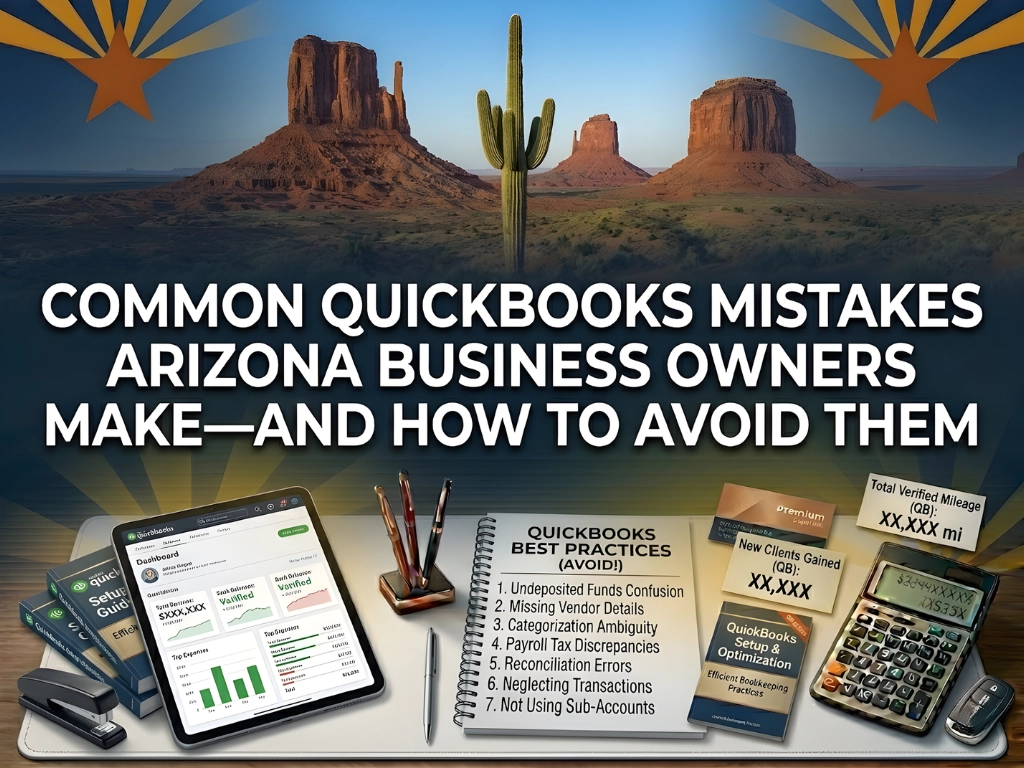
QuickBooks is one of the most widely used accounting tools for small businesses across Arizona, from Phoenix‑based contractors to Tucson‑area service providers and Scottsdale‑based consultants. When used correctly, it simplifies invoicing, expense tracking, payroll, and tax reporting, giving owners real‑time visibility into cash flow and profitability. Yet many Arizona business owners unknowingly make the same recurring mistakes that quietly distort their numbers, create reconciliation headaches, and complicate tax time. These errors are not usually the result of bad software; they stem from how the software is set up and maintained day to day.
Proper QuickBooks use directly affects cash‑flow decisions, tax deductions, and compliance with Arizona transaction privilege tax (TPT). Clean, accurate books also make lenders, investors, and potential buyers more confident in your numbers. The goal of this article is to walk through the most common QuickBooks mistakes Arizona business owners make, explain why each one matters, and give concrete, practical steps to avoid or fix them.
Why QuickBooks Mistakes Hurt Arizona Businesses
QuickBooks Online (QBO) is designed to automate and streamline accounting tasks, but it does not “think” for you. It simply records what you tell it to record and applies the rules you have configured. If those rules are wrong or if you mix personal and business transactions, the output will be misleading, even if the interface looks clean. For Arizona businesses operating in competitive, fast‑moving markets, unreliable reports can lead to poor pricing decisions, missed tax opportunities, and unexpected liabilities.
One of the biggest issues is that many owners treat QuickBooks as a tax‑season project rather than an ongoing management tool. They let transactions pile up, skip reconciliations, and then scramble in March or April to clean everything up. This approach increases accountant fees, delays insight into cash flow, and raises the chance of missed deductions or overstated income. When combined with Arizona‑specific requirements such as TPT and local business‑license rules, small errors can quickly compound into larger compliance problems.
Another factor is that QuickBooks’ bank‑feed automation and auto‑categorization features can be helpful, but they are not foolproof. Blindly accepting suggested categories or over‑relying on rules without periodic review can introduce subtle misclassifications that distort profit‑and‑loss reports. Over time, those distortions make it harder to see which services, products, or clients are truly profitable. For Arizona businesses that bill by project or client, this lack of clarity can lead to underpricing work or continuing relationships that are not actually profitable.
The rest of this article focuses on the most frequent QuickBooks mistakes Arizona business owners make, why each one matters, and exactly how to avoid or correct them in a way that fits into a realistic monthly workflow.
Mixing Personal and Business Finances
One of the single biggest problems Arizona business owners create for themselves is using one bank account or credit card for both personal and business spending. At first glance, this might seem like a harmless convenience, especially for sole proprietors who feel that “it’s all my money anyway.” In practice, it quickly turns reconciliation and tax time into a tangled mess. Every transaction becomes a guessing game: Is this a business expense, a personal purchase, or a bit of both?
When personal and business charges are mixed, the bank feed in QuickBooks becomes a jumble of groceries, rent, utilities, and client‑related expenses. This makes it difficult to categorize transactions accurately, which in turn skews profit‑and‑loss reports and can distort sales‑tax calculations. For Arizona businesses that collect transaction privilege tax, misclassifying personal items as business expenses or tagging personal purchases as taxable sales can create TPT‑related issues down the line. In addition, when year‑end clean‑up arrives, the CPA often spends hours tracing which transactions belong to the business and which do not, driving up fees and increasing the chance of errors.
To avoid this problem, the most effective step is to separate personal and business finances at the account level. Open a dedicated business checking account and a separate business credit card, even if your entity is a sole proprietorship. Use a clear naming convention such as “ABC‑Biz Checking” and “ABC‑Biz Card” so that it is obvious at a glance which transactions are business‑related. In QuickBooks, set up each business account as its own bank or credit‑card account and link them to the correct entity. When you do pay a personal expense from a business account—such as an owner’s draw or personal rent—record it explicitly as an Owner’s Draw or Owner’s Equity transaction rather than pretending it is an expense. This separation makes every other QuickBooks task, from reconciling to reporting and tax prep, significantly cleaner and more reliable.
Not Reconciling Bank and Credit‑Card Accounts Monthly
Many Arizona business owners assume that because their bank feed “looks right,” they do not need to reconcile their accounts. They see transactions flowing in, categories being applied, and reports updating, so they feel confident that everything is accurate. That assumption is one of the fastest ways to accumulate errors that quietly distort profit and loss. Reconciliation is not just a technical step; it is a quality‑control checkpoint that ensures what QuickBooks says matches what the bank actually shows.
When accounts are not reconciled regularly, several problems can arise. Duplicate transactions can slip through when both a manual entry and a bank‑feed line exist for the same payment. Missing transactions, such as small bank fees or ACH payments, can creep into the file without being noticed. Over time, the balance in QuickBooks no longer matches the bank statement, which makes cash‑flow decisions risky. When tax season arrives, the CPA often discovers months‑old discrepancies that require manual tracing and adjustment, adding time and cost to the process.
To avoid this, schedule a recurring calendar block each month to reconcile every linked bank and credit‑card account. In QuickBooks Online, use the Reconcile tool (Accountant menu → Reconcile) and match each statement line item to the corresponding QuickBooks transaction. Investigate any difference immediately instead of carrying it forward. If you find recurring small differences, create a separate “Bank Reconciliation Adjustments” expense or income account and document the cause, such as bank fees that were not recorded when they occurred. For Arizona businesses that live on tight margins, monthly reconciliation is not overhead; it is a form of financial insurance that keeps your cash‑flow picture accurate and trustworthy.
Misclassifying Income and Expenses
QuickBooks’ auto‑categorization can be helpful, but blindly accepting suggested categories is a recipe for bad reporting. Many Arizona owners end up with “Miscellaneous” clutter, incorrect cost of goods sold, or expenses that should be assets. Over time, these misclassifications make it harder to see true profitability by service line, project, or client. When tax time arrives, the CPA may need to reclassify large chunks of transactions, which can delay filings and increase fees.
One common misclassification is treating a major equipment purchase as an Expense instead of an Asset. This understates net income and overstates deductible expenses in one year, which can trigger questions from the IRS and distort year‑over‑year comparisons. Another frequent issue is putting client‑related travel under a generic “Travel” account instead of a project‑ or client‑specific category, which hides true job profitability. For businesses that bill by project, this lack of granularity makes it difficult to decide whether to continue or adjust pricing for certain types of work.
Sales‑tax‑related misclassifications are especially important in Arizona. Recording sales‑tax‑collected amounts as income instead of a liability inflates revenue and can trigger TPT‑related problems. To avoid this, turn on Sales Tax in QuickBooks and assign the correct Arizona TPT rate or automated tax rules. Ensure taxable line items on invoices are tagged with the appropriate tax code and use the Sales Tax Liability report to verify that collected tax matches what you expect to owe. If you are unsure how to classify a particular item, flag it and ask your accountant before closing the month. This discipline keeps your reports clean and your tax filings accurate.
Using the Wrong Account Type or Parent Accounts
QuickBooks lets you create parent and sub‑accounts, such as a parent “Professional Services” with subs “Accounting,” “Legal,” and “Marketing.” A common mistake is posting directly to the parent instead of the sub‑account, which muddies your reports. When you record all professional‑services spending under the parent account, your profit‑and‑loss statement shows a lump‑sum figure instead of breaking out accounting, legal, and marketing costs. This lack of detail makes it harder to see which professional services are costing the most and whether you are getting value for the money.
Another issue is using the wrong Account Type when creating new accounts. QuickBooks offers options such as Expense, Income, Other Expense, Other Income, Asset, Liability, and Equity. If you create a new account and leave it on the default type, you may inadvertently distort your balance sheet or income statement. For example, recording a long‑term loan as an expense instead of a liability can make your net income look better than it actually is. Over time, these small misclassifications accumulate and make it harder to assess the true financial health of the business.
To structure your chart of accounts effectively, keep the top‑level structure simple. Use broad categories such as Income, Cost of Goods Sold, Expenses, Other Income, Other Expenses, Assets, Liabilities, and Equity. Use sub‑accounts only where they add real insight, such as “Advertising” with subs “Google Ads,” “Facebook Ads,” and “Print.” When creating a new account, always verify the Account Type instead of leaving it on the default. Periodically review your chart of accounts and merge or delete redundant or rarely used accounts. For Arizona‑based businesses that bill by project or client, this structure also makes it easier to run Profit by Job or Profit by Customer reports.
Recording Bill Payments as New Expenses
Many Arizona owners enter a bill from a vendor, then later pay that bill and record the payment as a separate expense. This effectively doubles the cost in QuickBooks and makes the balance sheet inaccurate. For example, a vendor bill for $1,000 is entered, and when the bank payment clears, the owner clicks + New → Expense and records another $1,000. QuickBooks now shows $2,000 in expenses instead of $1,000, which distorts profit and can trigger questions from the CPA.
To pay bills correctly, enter the vendor bill using + New → Bill and save it. When you are ready to pay, go to Pay Bills (or the Expenses tab) and select the open bill. Choose the correct bank or credit‑card account and date, then click Pay Selected Bills. Do not create a separate expense transaction for the same amount. This method keeps your Accounts Payable balance accurate and prevents inflated expenses on your profit‑and‑loss statement. It also makes it easier to track which bills are paid and which are still outstanding, which is especially important for Arizona businesses that work with multiple vendors and subcontractors.
Duplicating Income by Misusing Deposits
Another frequent error is creating an invoice, receiving payment, and then recording the deposit as income instead of applying it to the invoice. This inflates revenue and leaves the invoice open. For example, you invoice a client for $1,000, the client pays, and the deposit appears in the bank feed. Instead of matching the deposit to the invoice, you click + New → Bank Deposit and enter $1,000 as income. QuickBooks now shows $2,000 in income instead of $1,000, which distorts your profit‑and‑loss report and can create confusion during tax time.
To record customer payments correctly, always create an invoice for billable work. When the payment arrives, go to Receive Payment (or use the bank‑feed “Match” feature) and select the correct invoice. If you deposit multiple checks at once, use the Undeposited Funds account. When receiving payments, select Undeposited Funds as the deposit‑to account. Later, when you make an actual bank deposit, go to Banking → Make Deposits and combine the payments into one deposit line. This method keeps your Accounts Receivable and revenue numbers clean and ensures that each payment is linked to the correct invoice.
Over‑Automating or Under‑Automating Bank Rules
QuickBooks’ bank‑feed rules can save hours, but many Arizona business owners either turn everything on auto‑apply or ignore rules entirely. Both extremes cause problems. Over‑automation means rules that auto‑categorize every Starbucks purchase as “Meals & Entertainment,” which may miss legitimate business‑related meals. Under‑automation means manually categorizing every transaction, which wastes time and increases the chance of human error.
To set up smart rules, start by reviewing 2–3 months of transactions and identifying patterns such as recurring rent, utilities, or software subscriptions. Create rules for high‑volume, predictable transactions, matching by Payee or Description and assigning the correct account, class, and customer if applicable. Keep Auto‑Apply turned off at first and manually review the rule’s suggestions for a few weeks. Avoid overly broad rules such as “all transactions containing ‘Restaurant’” and refine them over time. Well‑tuned rules free up time for strategic decisions instead of data entry.
Not Using or Misusing the Undeposited Funds Account
The Undeposited Funds account is one of the most misunderstood features in QuickBooks. When used correctly, it simplifies deposit tracking; when ignored, it can cause reconciliation issues. The idea is simple: when you receive customer payments (cash, checks, or ACH), you record them to Undeposited Funds. Later, when you take those payments to the bank, you create a Bank Deposit that combines multiple payments into one deposit line. This keeps your bank register aligned with your actual bank statement.
Common misuse includes recording deposits directly to the bank account without first using Undeposited Funds, which breaks the link between individual payments and the deposit. Another issue is leaving old payments sitting in Undeposited Funds for months, which distorts cash‑flow reports. To avoid this, use Undeposited Funds as a temporary holding account and make deposits at least weekly or as often as you physically deposit funds at the bank. Run the Deposit Detail report periodically to ensure nothing is “stuck” in Undeposited Funds. For Arizona businesses that receive frequent checks or cash, this discipline is essential.
Setting Up Sales Tax Incorrectly
Arizona’s transaction privilege tax (TPT) rules vary by city and county, and QuickBooks must be configured to reflect those nuances. Many Arizona owners either ignore sales‑tax settings or apply a flat rate everywhere. This can lead to underpayment or overpayment of tax, which creates compliance risk and potential penalties.
Typical tax‑setup errors include not turning on Sales Tax in QuickBooks, so tax collected is recorded as income. Another issue is using one statewide rate instead of city‑ or county‑specific rates. Failing to mark certain customers as tax‑exempt when they provide valid exemption certificates is also common. To configure sales tax correctly, go to Settings → Taxes → Sales Tax and enable automated sales tax if available for your plan. Enter your Arizona TPT license number and assign the correct tax codes to taxable items. Review the Sales Tax Liability report monthly to confirm that collected tax matches what you expect to owe. Keep copies of exemption certificates on file and tag exempt customers accordingly.
Waiting Until Tax Season to Clean Up the Books
Many Arizona business owners treat QuickBooks as a “tax‑season project” instead of an ongoing management tool. They let transactions pile up, skip reconciliations, and then scramble in March or April to clean everything up. This approach increases accountant fees, delays insight into cash flow, and raises the chance of missed deductions or overstated income.
To maintain clean books year‑round, set a recurring monthly routine. Reconcile all bank and credit‑card accounts, review and categorize any remaining uncategorized transactions, and run key reports such as Profit & Loss, Balance Sheet, A/R Aging, and A/P Aging. Use QuickBooks’ Closing Date feature to lock prior periods once they are finalized, so no one accidentally changes historical data. Schedule quarterly check‑ins with your accountant to review reports and adjust estimates, such as estimated tax payments. When you keep the books clean month‑by‑month, tax season becomes a review rather than a rescue mission.
Ignoring User Permissions and Access Controls
In many Arizona small businesses, everyone who touches the books has full access. That can lead to accidental changes, duplicated work, or even intentional manipulation. An employee with full access may delete or edit transactions without oversight, and multiple users may enter the same invoice or bill, creating duplicates. There is also no clear audit trail of who did what and when.
To manage user roles effectively, go to Settings → Manage Users and assign roles such as Admin (full access), Regular User (limited access tailored to responsibilities), and Reports Only (view‑only access). Enable the Closing Date and require a password so only authorized users can change prior‑period data. Periodically review the user list and remove access for former employees or contractors. Clear permissions protect both your data and your business relationships.
Not Backing Up or Exporting Data
QuickBooks Online is cloud‑based, but that does not mean your data is immune to accidental changes, user error, or service disruptions. Many Arizona owners never export or back up their file. If a user accidentally deletes a large batch of transactions, restoring from a recent backup is often the only practical fix. Some lenders or buyers also request an export of your QuickBooks data as part of due diligence.
To back up your file, use Settings → Export Data to download a copy of your company file periodically, such as quarterly. Store the exported file in a secure location, such as encrypted cloud storage or an external drive. If you use QuickBooks Desktop, schedule regular backups to an external drive or network location. Even a simple monthly export habit can save hours of headache later.
Not Leveraging Reports for Decision‑Making
QuickBooks generates dozens of reports, but many Arizona business owners either ignore them or treat them as “just for the accountant.” That means they miss real‑time insights into profitability, cash flow, and customer behavior. Key reports to review regularly include the Profit & Loss, Balance Sheet, A/R Aging, A/P Aging, and Profit by Job/Customer for project‑based businesses.
To use reports effectively, schedule a short monthly review of 30–60 minutes to scan these reports. Flag any surprises, such as a sudden spike in a particular expense category or a drop in gross margin. Use the data to adjust pricing, renegotiate vendor contracts, or tighten credit terms with slow‑paying customers. For Arizona businesses competing in crowded markets, data‑driven decisions are a clear differentiator.
Not Setting Up or Using Classes and Locations (When Needed)
If your Arizona business operates in multiple locations, divisions, or service lines, QuickBooks’ Classes and Locations features can be extremely useful. Many owners never turn them on, which makes it hard to see profitability by segment. A Phoenix‑based contractor with separate divisions (residential, commercial, and remodel) or a Tucson‑area retailer with multiple store locations can benefit from this segmentation.
To implement classes and locations, enable them in Account and Settings → Advanced. Create logical segments such as “Residential,” “Commercial,” “Scottsdale,” or “Tucson.” Assign each transaction to the appropriate class or location and run Profit & Loss by Class or Profit & Loss by Location reports to compare performance. This segmentation helps you decide where to invest more time, marketing dollars, or resources.
Relying Solely on QuickBooks Without Professional Oversight
QuickBooks is a tool, not a substitute for professional judgment. Many Arizona business owners assume that “if QuickBooks says it’s right, it must be right,” which can lead to missed deductions, compliance issues, or poor strategic choices. A qualified accountant or bookkeeper can verify that your chart of accounts, tax settings, and sales‑tax configuration are correct, spot patterns you may miss, and help you interpret reports and connect the numbers to real‑world decisions.
To work with a professional, choose someone familiar with QuickBooks and Arizona‑specific regulations. Decide how often you will sync, such as monthly, quarterly, or just at year‑end. Share access to your QuickBooks file securely and agree on who handles which tasks. This partnership turns QuickBooks from a data‑entry chore into a strategic asset.
Conclusion
QuickBooks can be a powerful ally for Arizona business owners, but only if it is set up and used correctly. The most common mistakes—mixing personal and business finances, skipping reconciliations, misclassifying income and expenses, duplicating transactions, and ignoring sales‑tax settings—are all preventable with a little discipline and the right habits. By separating accounts, reconciling monthly, classifying transactions accurately, using bank‑feed rules wisely, and reviewing key reports on a regular basis, you give yourself a clear picture of your business’s health.
Add in proper user permissions, regular backups, and occasional professional oversight, and you create a system that supports growth, compliance, and peace of mind. For Arizona businesses operating in competitive, fast‑paced markets, clean QuickBooks data is not just an accounting detail; it is the foundation of smarter decisions, stronger cash flow, and a smoother tax season every year.